You've had a chatgpt.com tab pinned for months, and most of what you do in it starts with copying something out of another tab. Searching for ChatGPT in Chrome usually ends at OpenAI's own extension, which now has a side chat. Lensia's sidebar makes a different offer: the models behind ChatGPT next to Anthropic's Claude models and DeepSeek's, Lensia Max to pick one for each message, and a box you can draw around any part of the screen. Here's what each tool does, and when OpenAI's is all you need.
Start with what ChatGPT's own extension does.
OpenAI's ChatGPT extension has a side chat that opens from the toolbar and stays with the tab you opened it in. According to OpenAI's extension documentation, it can:
- Answer questions about the page beside it, and pull in your other open tabs when a task needs them.
- Take a passage you highlight, or one you right-click and send with Ask ChatGPT.
- Use a YouTube video's timestamped transcript when the video has captions.
- Work in your browser for you, asking before it touches each new website unless you allow more.
Side chat works in Chrome, Edge, Brave and Vivaldi. Check that page for what your plan includes, since OpenAI says availability depends on rollout and workspace settings.
Keep using ChatGPT's extension when your work lives in ChatGPT.
If you already pay for ChatGPT, and your conversation history, memories and connected apps are all there, the official extension is the simpler choice. Everything it does lands in that same account.
Lensia is a separate sidebar with its own plans, so a ChatGPT subscription doesn't carry over to it. Install it only if you keep running into one of the gaps below.
Get GPT, Claude and DeepSeek models in one picker.
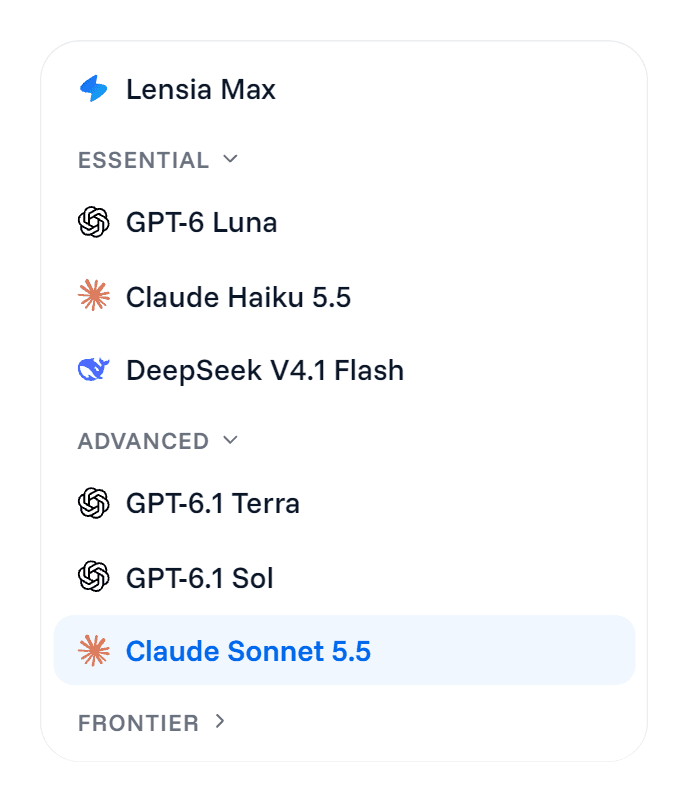
The clearest difference is the model picker. Lensia's sidebar puts the models behind ChatGPT next to Anthropic's Claude models and a DeepSeek model:
- Free has Essential models: GPT-6 Luna, Claude Haiku 5.5 and DeepSeek V4.1 Flash.
- Basic adds Advanced models: GPT-6.1 Terra, GPT-6.1 Sol and Claude Sonnet 5.5.
- Pro adds Frontier models: GPT-6 Astra and Claude Opus 5.5.
Leave the picker on Lensia Max and it picks a model for each message from the Essential and Advanced models your plan includes.
A second model family helps most with an answer that's correct but no use to you, like a paragraph of abstraction where you wanted an example. Change one thing at a time. Pick another model in the picker and send:
Answer my last question again from the same page.
If the new answer is clearer, you know the model made the difference, not a reworded prompt.
The multi-model sidebar guide covers when switching is worth it and how to compare two answers without mistaking a different style for a better one.
Ask about the part of the page that isn't text.
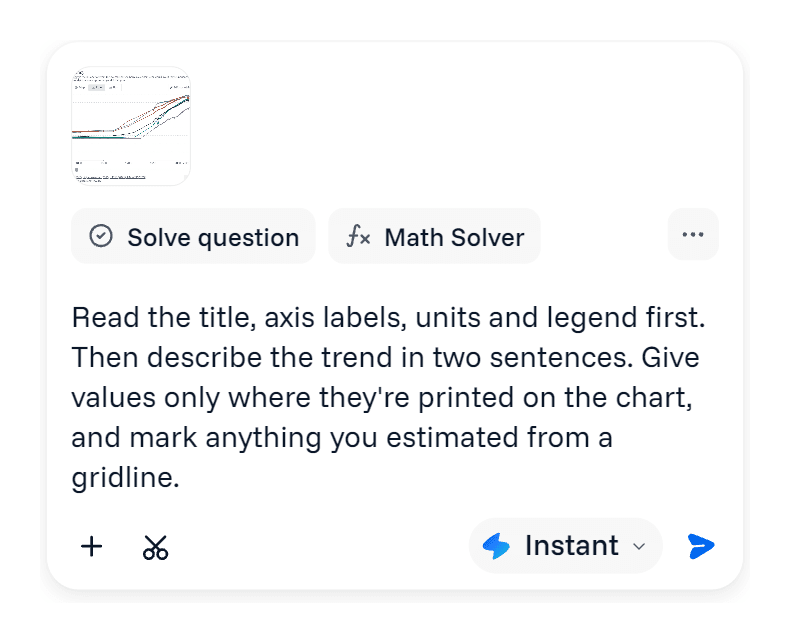
For a chart, a diagram or a screenshot inside a slide deck, Lensia lets you draw a box around it. With the sidebar open, press Ctrl+Shift+X and drag over the chart. The selection lands in the sidebar composer as an image, and nothing is sent until you type a question:
Read the axis labels and units first. Then tell me which quarter the revenue line peaks in, and say where you're estimating a value rather than reading it.
Only the region you selected is sent, not the rest of the tab. Check any figure the answer gives against the chart before you reuse it, because a model can misread a gridline.
If the sidebar is closed, the same shortcut opens Lensia's floating panel with a quick answer, and Continue in Chat moves the question, the answer and the image into the sidebar.
Work on the page you're on.
For ordinary reading, both tools can answer questions about the page beside them. In Lensia, open the sidebar from the toolbar icon or with Ctrl+Space and ask. The chip above your request names the page it read. On a long page, name the section you mean, or paste it.
Two more ways to bring material in:
- Select a passage on the page while the sidebar is open and it's added to your next message.
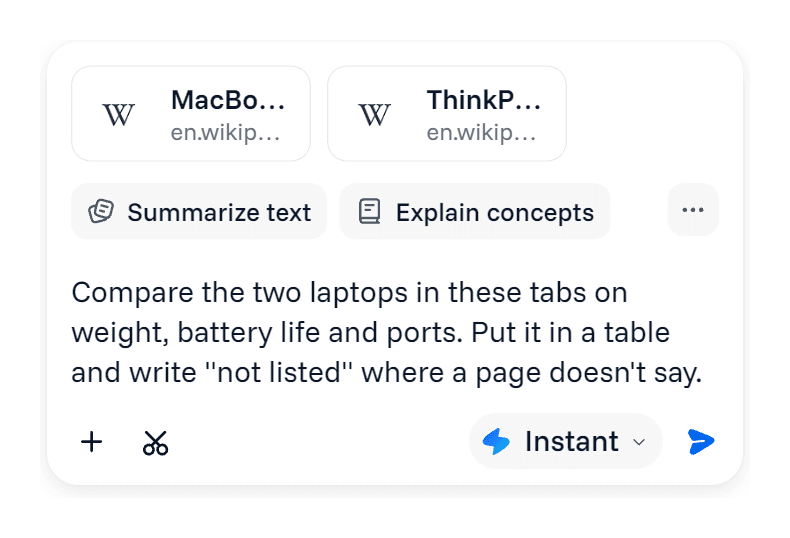
- Open the + menu in the composer to attach another open tab, or upload files. A message can carry up to five PDFs.
Then ask something you can check:
Using only this page and the attached tab, list where the two vendors' refund terms differ. Write "not stated" where a page doesn't say.
The article summarizer guide has more prompts that keep a summary tied to its source, and the PDF guide covers attachments and their size limits.
Check the plan before you rely on a feature.
Lensia's plans are separate from ChatGPT's. Free gives you limited usage with Essential models, sidebar chat and PDF attachments. Basic has more usage and adds web search, URL fetching, Advanced models and higher reasoning effort. Pro has even more usage and adds Frontier models and Task, which carries out multi-step work in your browser tabs.
Usage is measured by cost across a session and a week, so a long PDF or a larger model uses more than a short question. Start on Free and compare the plans once you know which of these you actually use.
Ask one question in both and keep the better answer.
Pick a page you're working on this week. Ask your question in ChatGPT's side chat, then ask the same thing in Lensia's sidebar with a Claude model selected. If ChatGPT's answer is one you'd send as it is, you don't need a second tool. If Claude's needed less fixing, that's your reason to keep both.
Add Lensia to Chrome and run that test on the next page you open.