There's an Ask Gemini button at the top of your Chrome window now, and it does some of what you installed an AI extension for. Before you add another one, find out what Gemini in Chrome already covers for the work you do. For plenty of people it's enough. For others, a separate sidebar still earns its place, and you can tell which group you're in with one test.
See what Gemini in Chrome does today.
According to Google's Gemini in Chrome help page, you click Ask Gemini, opt in the first time, and ask about the page you're on. By default it uses your current tab, and you can share up to 10 open tabs with it. From there it can:
- Summarize an article, explain a topic, or compare information across the tabs you've shared.
- Answer questions about video and audio you've already played on a media site.
- Draft a Gmail message, and work with Google Calendar to check your availability or add an event.
You need to be signed in to Chrome on a Mac, Windows or Chromebook Plus computer, be at least 13, and live in a supported region with a supported language. It doesn't run in Incognito, and Google is still rolling it out, so it may not have reached your account yet. A work or school account needs its administrator to switch it on.
Stay with Gemini when it covers your day.
If your browser time is mostly reading articles, catching up on YouTube and drafting emails in Gmail, Gemini in Chrome is the sensible default. There's nothing to install. It reads the tabs you choose, and it's tied into the Google apps you already use. Summarizing a video you just watched or comparing three open product pages are things it's built for.
Try it on one real task first:
Compare the three laptops in my shared tabs on weight, battery life and ports. Put it in a table and write "not listed" where a page doesn't say.
If the answer is right and you'd use it as it is, you probably don't need an extension.
Add a sidebar when one of these jobs is yours.
These are the jobs where a sidebar extension like Lensia does something different. Test each one on your own work rather than taking it on trust.
A choice of model families.
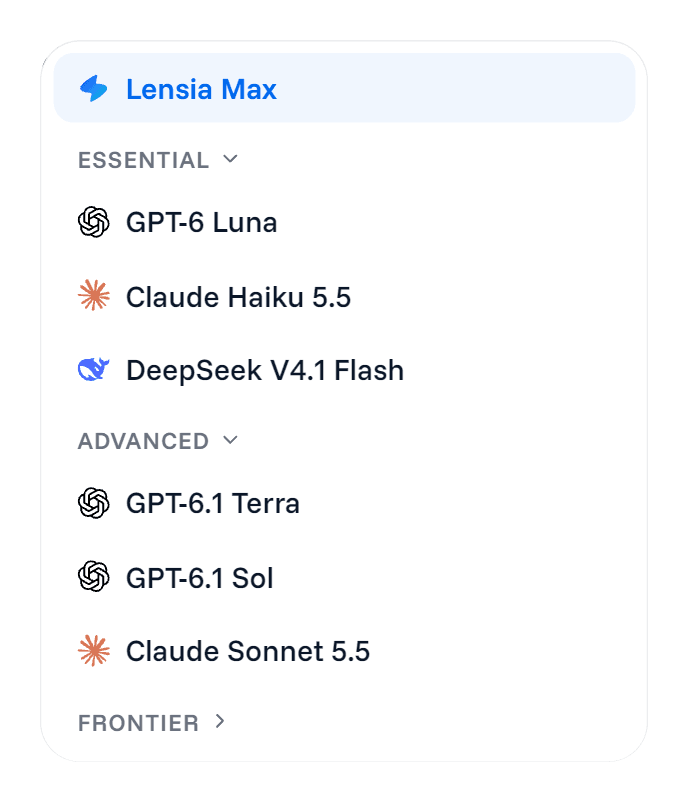
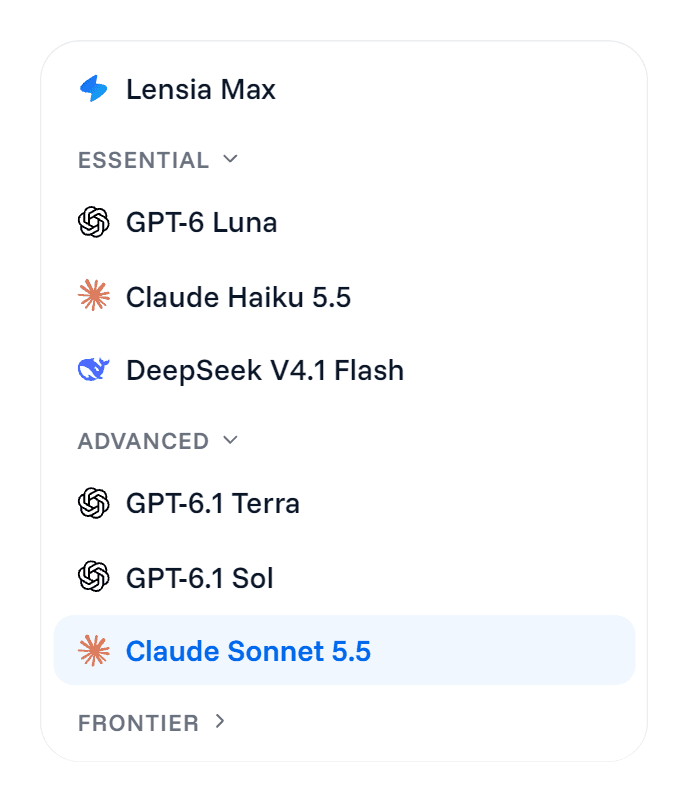
Gemini in Chrome answers with Google's Gemini models. Lensia's model picker has the models behind ChatGPT, Anthropic's Claude models and DeepSeek's. Free includes Essential models such as Claude Haiku 5.5, GPT-6 Luna and DeepSeek V4.1 Flash. Basic adds Advanced models, including Claude Sonnet 5.5 and GPT-6.1 Sol. Pro adds Frontier models such as Claude Opus 5.5 and GPT-6 Astra. Leave the picker on Lensia Max and it chooses one for each message.
That matters when you've found that one model writes the way you do, or explains a topic in a way that clicks. The multi-model sidebar guide shows how to compare them.
Part of the screen, not the whole page.
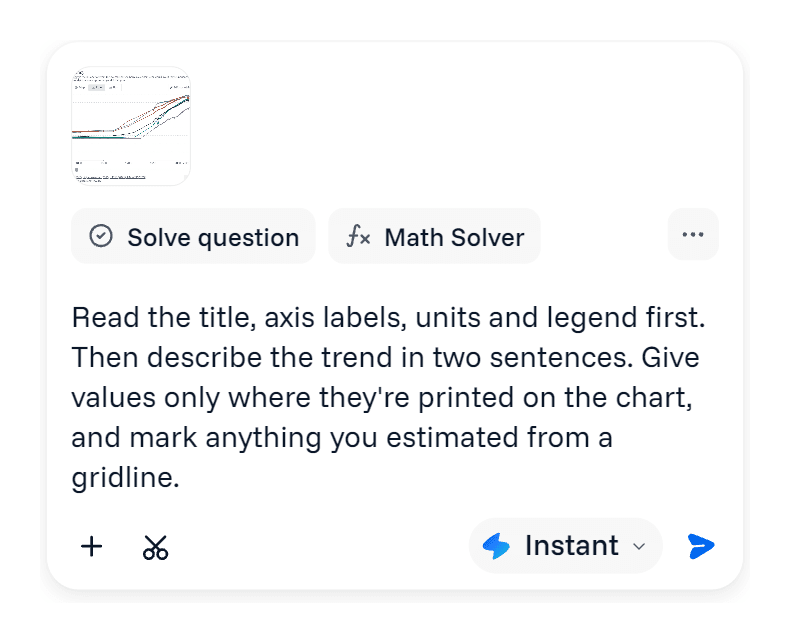
With the Lensia sidebar open, press Ctrl+Shift+X and drag a box around a chart, a diagram or one panel of a dashboard. The selection is attached to the sidebar composer as an image, and only that region is sent. Google's AI in Chrome page lists pointing at a specific image or paragraph as coming soon, as of October 2026, so this is worth checking against Gemini again later.
Files that aren't web pages.
You can attach up to five PDFs to one message in the sidebar, within a combined size of 2 MB on Free, 10 MB on Basic and 20 MB on Pro. The PDF summarizer guide covers comparing two documents on the points you care about.
A thread you come back to.
The sidebar keeps your conversation history, and bookmarks hold the answers you'll reuse. One thread per project keeps a client's details out of another client's reply.
Hand off a multi-step task with the right controls.
Both tools can do work across websites for you, and both gate it behind a paid plan.
Gemini's auto browse needs a Google AI Pro or Ultra subscription, and Google's auto browse page says it's for people 18 or over in the US with their device set to English, with up to 20 requests a day on AI Pro and 200 on Ultra. Google says it aims to ask for your confirmation before steps like sending a message or submitting a web form, and it may ask you to take over to finalize a financial transaction.
Lensia's Task is on Pro. You pick how much it may do on its own. Ask for approval checks with you before it clicks, types or changes a page. Full access runs the task without asking, and you confirm a warning each time you choose it. In both modes, a step Task recognizes as a payment waits for your approval.
Whichever you use, give it a scoped job you can check, such as "add these three items to the cart and stop before checkout", rather than "do my shopping".
Check what each one can see.
Gemini in Chrome shares your current tab by default, plus any tabs you add, and its settings let you turn the default off. Lensia's sidebar sends your active tab's title and address with each message, and reads the page's text when your question is about it. A screen selection sends only the box you drew. The privacy policy has the full detail.
Either way, trim what you paste. A forwarded email thread carries more names and numbers than the paragraph you're asking about.
Run the same test in both.
Pick one page from your real work and ask both tools the same question:
- Open the page and ask Gemini your question.
- Open the Lensia sidebar and send the same prompt.
- Ask one follow-up in each, about a detail the first answer skipped.
- Check both against the page, and note what you had to correct.
What does this page commit to, with dates? Then list anything it says is still undecided.
If Gemini's answers are the ones you'd use, keep it and skip the install. If the sidebar's needed less fixing, keep both: Gemini for a quick look at a page, Lensia when you want a different model or a box around part of the screen. The article summarizer guide has more prompts worth testing on long pages.
Lensia's Free plan has limited usage, Basic has more usage plus web search, and Pro has even more. Compare the plans once you know what you need.
Install Lensia for Chrome and run the test on the next page you'd normally ask Gemini about.