You need an office chair under $300, and you've had five store tabs open for an hour, comparing armrests and return windows. An AI shopping agent can do that legwork for you. The worry is the obvious one: will it buy something while you're not looking? Set it up so checking its work is faster than doing the shop yourself, and so the purchase stays your decision.
Hand over the comparison, keep the purchase.
The work worth delegating is the repetitive part: opening each product page, reading the specs and the return policy, and putting it all in one table. As one Hacker News commenter put it, "Reviewing a list is much quicker than doing the whole shop provided it's 90% accurate."
Lensia's Task, on Pro, does that work in your browser. It opens pages, reads them, clicks and types, and brings the results back to the sidebar. Switch the sidebar's header from Chat to Task, then write the brief.
One check before you start: some stores' terms don't allow automated tools to browse or buy. Read them before you hand a store to any agent, and name the stores yourself rather than letting it pick.
Write the brief with a stop line.
Give it the budget, the must-haves, where to look, and where to stop:
Compare office chairs under $300 on the store in this tab and the store I have open in the next tab. Don't use any other site. I need adjustable armrests, a seat depth of at least 18 inches and free returns for 30 days or more. Read each product page, not just the search results. Give me a table with price, shipping cost, return window and a link for each chair. Then add my best match to the cart on its store and stop before checkout.
Task asks before it uses a tab you opened yourself, so expect one card for the second store. The budget and must-haves give you something to check the table against. "Read each product page" matters because search results often leave out the return terms. And stop before checkout keeps the purchase in your hands, whichever permission mode you're in.
If you only want the comparison, leave out the cart step. The research assistant guide shows how to scope a Task job so it doesn't wander.
Choose what it does without asking.
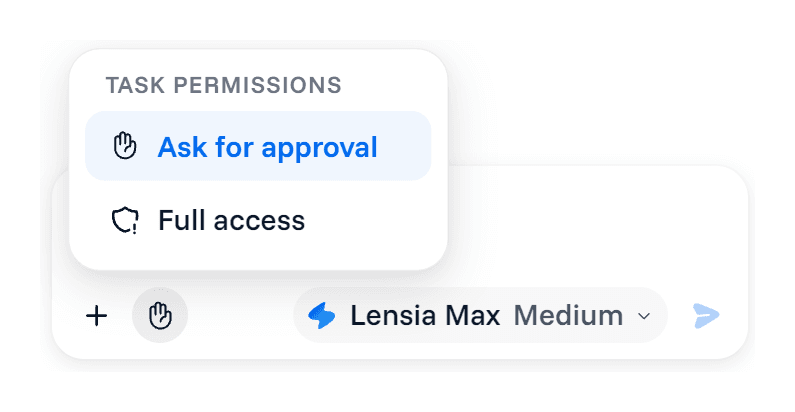
The Task permissions menu in the composer has two choices.
Ask for approval is the default. Task reads, scrolls and searches the page, waits for it to load, switches between tabs it can use and takes screenshots without asking. Before it clicks, types, opens a tab or goes to another page, a card asks "Allow Lensia to ... on ...?", with Deny and Allow once.
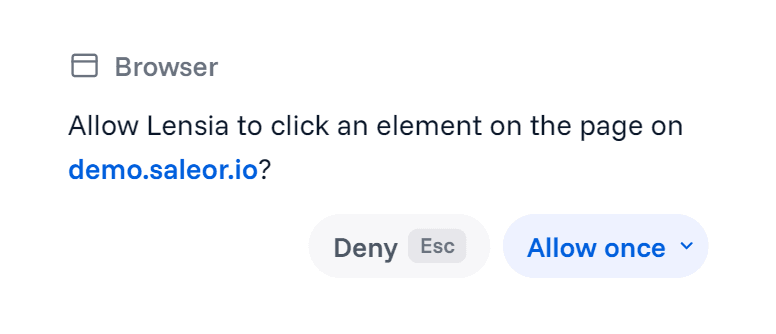
The card's menu also has Allow for this site. Use it carefully on a store. It saves that one kind of action, such as clicking, for that site, and it carries over to later tasks until you remove it in Lensia's Options under Site permissions. For a first run on a store, Allow once is the better habit.
Full access skips those prompts. Lensia shows a warning each time you turn it on, and you can switch back at any time. For shopping, stay on Ask for approval until you've watched a run or two on that store.
Know what still asks, even on Full access.
A click Task recognizes as completing a payment, order, transfer or trade asks in both modes, and no saved permission covers it. So does submitting or signing in on a store you didn't name, such as one a redirect took it to. The card reads "Approve a payment on" the store's site, with Deny and Approve payment.
The payment card covers the buttons Lensia recognizes as payment, which isn't every button a store could draw. That's why the stop line in your prompt still matters, most of all on Full access.
Payment details need a rule of their own. Task never types into password fields or fields a site marks as card details, and it hides card numbers from what it reads and from its screenshots. Type payment details yourself. If an order would go through on a card the store already has saved, the payment card is your last check, so approve it only when you mean to pay.
Watch the first run.
Task works in its own tab, so you can keep using another one. Switch to its tab to watch: you'll see its cursor move, and each step appears in the sidebar as it goes. To end it, click Stop Lensia at the bottom of the page or stop the turn in the sidebar. A Deny on any card also ends the run.
In Ask for approval mode, keep the sidebar open while it works. An approval that's waiting when you close the sidebar fails and ends the run.
Check the table and the cart before you pay.
Prices and stock change between the moment an agent reads a page and the moment you buy. Open each link in the table and check:
- The variant: size, color and quantity in the cart.
- The seller, on stores where other sellers list products.
- Shipping and tax at checkout, which a product page may not show.
- The return window on the product page itself.
Then ask for the evidence behind the claims you care about most:
For each chair in the table, quote the sentence on its product page that states the return window, and say "not found" if the page doesn't state one.
Any "not found" is a chair you check by hand before it goes anywhere near checkout.
Keep its reach small.
Task acts in your own browser, signed in as you, with your saved addresses and order history. Web pages can also carry text written to steer an agent. In Ask for approval mode, each card shows you the action before it happens, which only helps if you read it instead of clicking through. The guide to AI extension safety covers what Task and the sidebar send, and when.
Clear site permissions you no longer need from Options. Pick the effort level by the job: Task has its own levels, Light to Ultra, and a comparison across two stores rarely needs the top one. The multi-model guide explains how effort and model choice affect what a request uses.
Task is on Pro, which also gives you even more usage than Basic. If you're still choosing a tool, run the test in the buyer's guide to AI Chrome extensions first, then compare the plans.
Add Lensia to Chrome and give Task one comparison you'd otherwise spend an hour on.