You click Add to Chrome, and the dialog says the extension can "Read and change all your data on all websites". For a tool whose whole job is sending things to an AI model, that line deserves a second look. So is an AI Chrome extension safe to install? The answer turns on a narrower question than the warning suggests: what it sends, when it sends it, and who keeps it afterwards.
Read the warning as a description of reach.
Chrome words its install warnings by what an extension could do, not by what it does. The same sentence sits under several powerful permissions in Chrome's permissions reference, the debugger among them.
Lensia shows it for two reasons. It can run on any site, which the capture shortcut, the floating panel and the button on the page all need, and the sidebar needs it to read the tab you ask about. And Task, the Pro feature that clicks and types for you, uses Chrome's debugger, which also brings a second line: "Access the page debugger backend".
So the warning tells you the ceiling. It can't tell you whether an extension sends your banking page anywhere, and that's the part you need to find out.
Ask what leaves your browser, and when.
An AI assistant can't answer without sending something to a model. The useful question is what triggers a send, and a trustworthy extension answers it surface by surface. Here is Lensia's answer:
- A sidebar message sends what you typed, plus the tab's title and address with the query string and token-like parts removed. The page's text goes too when you attach the page, or when your question is about the page and Lensia reads it to answer.
- A floating capture sends only the area you dragged, cropped on your computer, and anything you typed. The page's text and address stay out of it.
- Images and PDFs you attach go as the whole file.
- Web search and Fetch URL, on Basic and above, send the search query to the search provider, and the pages Lensia fetches go to the model.
- Task, on Pro, sends the pages it reads and acts on, with their real addresses. Its screenshots cover private fields first.
Ordinary chat sends nothing from incognito windows or files on your computer. And nothing goes out from a page until you use one of these.
Look for an answer that specific from any extension you're weighing. "We only access what we need" doesn't tell you whether the page you're reading travels with every message.
Watch what it reads before you trust it.
Try it on a page you don't care about first, like a public news story about a new regulation. Open the sidebar and ask something that only the page can answer:
When do these rules start to apply? Tell me which part of the page you used, and say so if you couldn't read it.
Page text can reach a question three ways, and the sidebar shows each one. A page you attach sits as a chip above your request. Text you select while the sidebar is open appears as a card in the composer. Both can be removed before you send. And when Lensia reads the page by itself to answer, a Read page step appears above the answer.
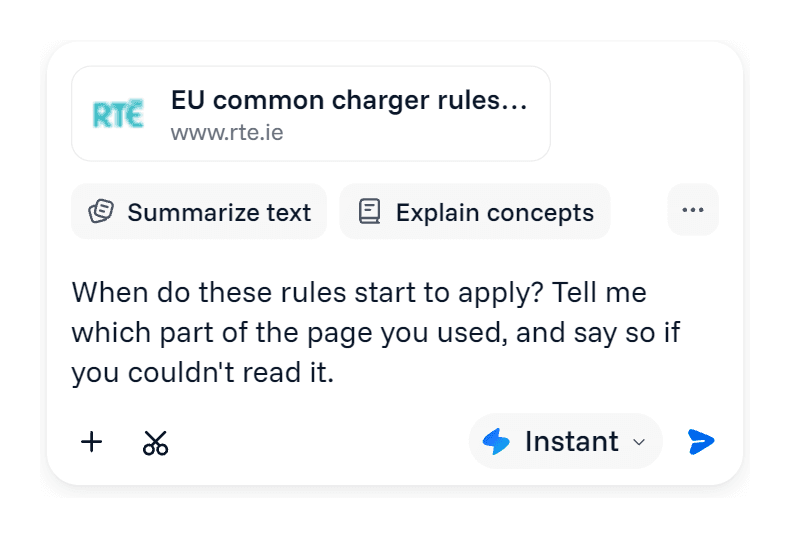
A tool that works from the page without showing you when it read it leaves you guessing. The article summarizer guide has more prompts that make an answer show where it came from.
Read the privacy policy for three answers.
Skip the reassurance paragraphs and look for three facts.
Who receives what you send.
A policy should name its providers. Lensia's requests go to its servers on Cloudflare, then through OpenRouter to the company hosting the model: OpenAI, Anthropic or DeepSeek, or a host such as Amazon Web Services, Google or Microsoft Azure. A request answered by a free model can go to other model makers and hosts. Web search queries go to Exa, or to Tavily if Exa can't answer.
What is kept, and for how long.
Your chat history stays in Chrome on your computer, and you delete it from the sidebar's history. Lensia's servers keep usage records (the model, token counts, cost and time) to run your allowance. Screenshots and images aren't saved. Other requests, such as sidebar messages and the page text sent with them, can be kept in request logs for up to 3 months to improve the service, then deleted or anonymized.
What it's used for.
Lensia doesn't sell your information or use it for behavioral advertising. A policy that names no providers and no retention period hasn't answered the question, however warm it sounds.
The full details are in Lensia's privacy policy.
Keep sensitive pages out of the conversation.
The tab's title and address go with every sidebar message, even one that has nothing to do with the page. If your payroll system or a patient record is the active tab, switch to another tab before you ask the sidebar about something else.
Attachments need the same care. A PDF or a pasted thread often carries more than the paragraph you need, such as an account number or a client's home address, so trim it before you send. The PDF summarizer guide shows how to save just the pages you need as their own file, and the email writing guide covers pasting only the messages that matter.
If the Lensia button on the page bothers you on a site, click the × on it and choose Disable on this site, or Disable on all sites. Your workplace's rules about AI tools come first: if they say no client documents, that settles it.
Give Task only the access the job needs.
Task, on Pro, works in your own browser, so it acts with whatever you're signed in to. In Ask for approval mode, it reads, scrolls and searches without asking, and waits for your OK before it clicks, types, opens a tab or goes to another page. Full access skips those prompts after a warning. Even then it asks before a payment, order or trade it recognizes, and it never types into password fields or fields a site marks as card details.
Start with Ask for approval on any site that holds your money or your accounts. The shopping agent guide shows how to write Task a brief with a stop line, and the research assistant guide how to give it a job that only reads.
Check the permissions after you install.
Open chrome://extensions and choose Details on the extension to see what it asked for.
- If an update asks for a new permission with a warning, Chrome turns the extension off until you accept it. Read that prompt instead of clicking through it.
- An extension you no longer use still holds its permissions. Remove it rather than leaving it switched off for a year.
Free covers the sidebar, page summaries and the floating panel with limited usage. Web search starts on Basic and Task on Pro, so compare the plans once you know which of them you'll actually use.
Add Lensia to Chrome, open a page you don't mind sharing, and check the chip before you send your first question.